

Hey there! As a supplier of Vehicle PTZ Cameras, I often get asked about how to configure the network settings of these nifty devices. It might seem a bit daunting at first, but trust me, it's not as hard as it looks. In this blog, I'll walk you through the whole process step by step.
First off, let's talk about why network configuration is so important for a Vehicle PTZ Camera. These cameras are used in all sorts of vehicles, from trucks to buses, and even some high - tech cars. They help with surveillance, security, and sometimes even for navigation purposes. By properly configuring the network settings, you can ensure that the camera can communicate effectively with other devices, like your computer or a monitoring system.
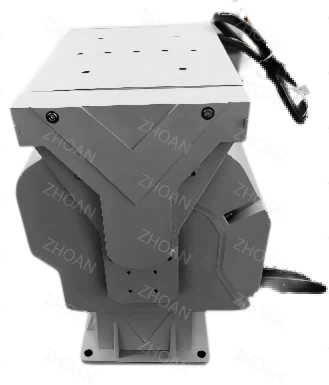

Step 1: Gather the Necessary Information
Before you start configuring anything, you need to have a few things on hand. You'll need the camera's user manual, which usually comes with all the default settings and detailed instructions. You'll also need to know the IP address range of your network. This can usually be found on your router's settings page.
If you're using a HD Intelligent PTZ Camera, it might have some advanced features that require specific network configurations. Make sure to check the product page for more info.
Step 2: Connect the Camera to the Network
The next step is to physically connect the camera to your network. Most Vehicle PTZ Cameras come with an Ethernet port. You can use an Ethernet cable to connect the camera directly to your router. If you're using a wireless camera, you'll need to put the camera in pairing mode and connect it to your Wi - Fi network.
Once the camera is connected, give it a few minutes to boot up and establish a connection. You can usually tell if it's connected by looking at the status lights on the camera.
Step 3: Access the Camera's Web Interface
Now that the camera is connected to the network, you need to access its web interface. Open up your web browser (I usually use Chrome, but Firefox or Safari works too) and type in the camera's default IP address. This can be found in the user manual.
When you access the web interface, you'll be prompted to enter a username and password. The default username and password are also in the manual. It's a good idea to change these to something more secure once you're logged in.
Step 4: Configure the Network Settings
Once you're logged into the camera's web interface, you can start configuring the network settings. The first thing you'll usually see is a page with options for DHCP (Dynamic Host Configuration Protocol) or static IP.
DHCP
If you choose DHCP, the camera will automatically get an IP address from your router. This is the easiest option, especially if you're not very tech - savvy. The router will handle all the IP address assignments, and you don't have to worry about conflicts.
Static IP
If you choose a static IP, you'll need to manually enter an IP address, subnet mask, gateway, and DNS server. This option gives you more control over the camera's network settings, but it also requires a bit more knowledge. You need to make sure that the IP address you choose is not already in use on your network.
Step 5: Test the Connection
After you've configured the network settings, it's time to test the connection. Try accessing the camera's live feed from your web browser. If you can see the live feed, then the network configuration was successful. If not, double - check your settings and make sure everything is entered correctly.
If you're using a Variable Speed Medium Duty Motorized Pan Tilt Head With15kg (33.07lb) Payload, you might need to adjust the settings to ensure smooth movement and proper communication between the camera and the pan - tilt head.
Step 6: Advanced Settings (Optional)
If you want to take your network configuration to the next level, there are some advanced settings you can play with. For example, you can set up port forwarding on your router to allow remote access to the camera from outside your network. This is useful if you want to monitor your vehicle from anywhere in the world.
You can also configure the camera to send alerts or notifications to your phone or email when it detects motion or other events. These settings can usually be found in the camera's web interface under the "Advanced" or "Settings" tab.
Step 7: Security Considerations
Security is always a big concern when it comes to network - connected devices. Make sure to keep your camera's firmware up to date. Most manufacturers release regular updates to fix security vulnerabilities and add new features.
If you're using a 316 Stainless Steel EXD II CT6 Explosion - proof Pan Tilt Head for Hazardous Areas, security is even more critical. These cameras are used in high - risk environments, so you need to make sure they're properly protected.
Conclusion
Configuring the network settings of a Vehicle PTZ Camera might seem like a complex task, but if you follow these steps, you'll be up and running in no time. Remember, if you run into any problems, don't hesitate to reach out to our support team.
If you're interested in purchasing our Vehicle PTZ Cameras or have any questions about network configuration, feel free to contact us for a procurement discussion. We're here to help you make the most of our products and ensure that your surveillance needs are met.
References
- Camera User Manuals
- Router Configuration Guides
- Online Resources from Camera Manufacturers


