

Hey there! As a supplier of IP66 PTZ cameras, I often get asked about how to check the health status of these nifty devices. IP66 PTZ cameras are super popular because they're weather - resistant (that's what the IP66 rating means) and can pan, tilt, and zoom, giving you a wide range of surveillance options. So, let's dive into some simple ways to make sure your IP66 PTZ camera is in tip - top shape.
1. Visual Inspection
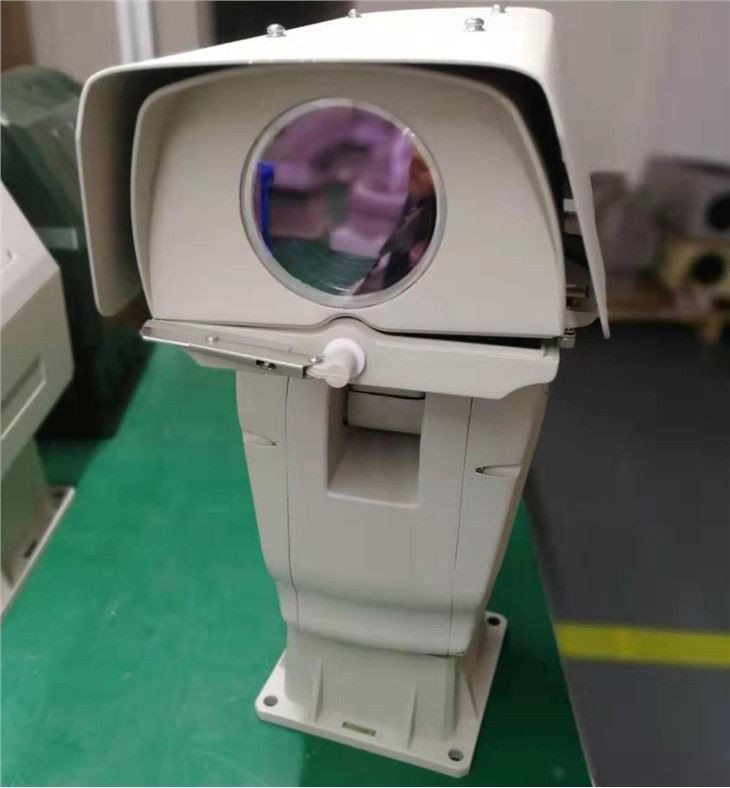
First things first, a good old - fashioned visual check can tell you a lot. Start by taking a look at the physical condition of the camera. Check for any visible signs of damage like cracks, dents, or loose parts. The housing of an IP66 camera is supposed to be sturdy, but accidents can happen. If you see any damage, it could be letting in moisture or dust, which can mess up the camera's performance over time.
Also, examine the lens. A dirty or scratched lens can seriously affect the image quality. If there's dirt on the lens, you can usually clean it with a soft, lint - free cloth. Just be gentle so you don't scratch it. And make sure the camera's mounting is secure. A wobbly camera might not be pointing in the right direction and could also lead to mechanical issues down the road.
2. Power and Connectivity
Next up, power and connectivity are crucial. Check if the camera is getting power. If it's powered by an AC adapter, make sure the adapter is plugged in properly and there are no loose connections. You can also try plugging the adapter into a different outlet to rule out any power problems with the original one.
For network - connected cameras, verify the network connection. Check the Ethernet cable to make sure it's plugged in tightly. If it's a wireless camera, make sure it's connected to the right Wi - Fi network and the signal strength is good. You can usually find this information in the camera's settings menu.
If you're having trouble with the connection, try restarting the camera and the router. Sometimes, a simple restart can fix a lot of connectivity glitches. And don't forget to check if the camera has the latest firmware updates. Outdated firmware can cause all sorts of problems, so keeping it up - to - date is a must. You can usually find the firmware update option in the camera's settings.
3. Functionality Tests
Now, let's test the camera's functions. Start with the basic pan, tilt, and zoom functions. Use the camera's control interface, whether it's a mobile app or a web - based interface, to move the camera around. Make sure it can pan left and right, tilt up and down smoothly, and zoom in and out without any jerks or delays.
If the camera has preset positions, test those too. Presets are really handy for quickly moving the camera to a specific angle. Try setting a new preset and then recalling it to see if it works as expected.
Also, test the camera's night vision. In a dark environment, check if the night vision kicks in and if the image quality is good. A malfunctioning night vision can be a sign of a problem with the infrared LEDs or the camera's light sensor.
4. Image Quality Analysis
The whole point of having a camera is to get clear, useful images. So, take a close look at the image quality. Check for things like blurriness, color accuracy, and contrast. If the image is blurry, it could be due to a misaligned lens, a dirty lens, or a problem with the camera's autofocus.
Color accuracy is important too. If the colors in the image look off, it might be a sign of a sensor issue. And if the contrast is too high or too low, it can make it hard to see details in the image. You can usually adjust the image settings in the camera's menu to try and improve the quality.
5. Error Messages and Logs
Most modern IP66 PTZ cameras have a built - in error reporting system. Check if there are any error messages on the camera's display or in the control interface. Error messages can give you a clue about what's going wrong. For example, an error message about a communication failure could mean there's a problem with the network connection.

You can also look at the camera's logs. Logs record all sorts of events and activities, like when the camera was powered on and off, any errors that occurred, and changes in settings. By analyzing the logs, you might be able to spot patterns or recurring issues that need to be addressed.
Our Product Range
We offer a great range of IP66 PTZ cameras that are built to last and perform well. Check out our HD Intelligent High Speed PTZ Camera. It's got all the features you need for high - quality surveillance, with fast pan, tilt, and zoom capabilities.
Another great option is our HD High Speed IP Or Network Integrated PTZ Camera System With Laser And Thermal Camera. This camera system combines the power of laser and thermal imaging, giving you clear images even in low - light or challenging environments.
And if you're looking for a camera that can rotate continuously, our Continuous Rotation PTZ PAN TILT Camera is the one for you. It can keep rotating without any stops, providing a 360 - degree view of the area.
Conclusion
Checking the health status of an IP66 PTZ camera is not rocket science. By following these simple steps, you can keep your camera in good working condition and ensure that it provides reliable surveillance. If you have any questions or need more information about our IP66 PTZ cameras, don't hesitate to reach out to us. We're always here to help you with your surveillance needs and guide you through the purchasing process. Whether you're a small business owner looking to secure your premises or a homeowner wanting to keep an eye on your property, our cameras are a great choice. So, get in touch with us and let's start the conversation about finding the perfect IP66 PTZ camera for you.
References
- General knowledge about IP66 PTZ cameras from industry experience.
- Technical specifications and user manuals of IP66 PTZ cameras.


